About
Gonzaga’s Jesuit, Catholic, Humanistic education will challenge and inspire you.
Gonzaga's Financial Aid Office utilizes ZagWeb for students to view and manage their financial aid award. Students will be notified via their Gonzaga email address of all award revisions and will be prompted to log into ZagWeb to review and accept or decline their award.
To view your award on ZagWeb l
Step 1: log into: zagweb.gonzaga.edu
Step 2: Click on the "Financial Aid" tab
Step 3: Click on the "Award" tile
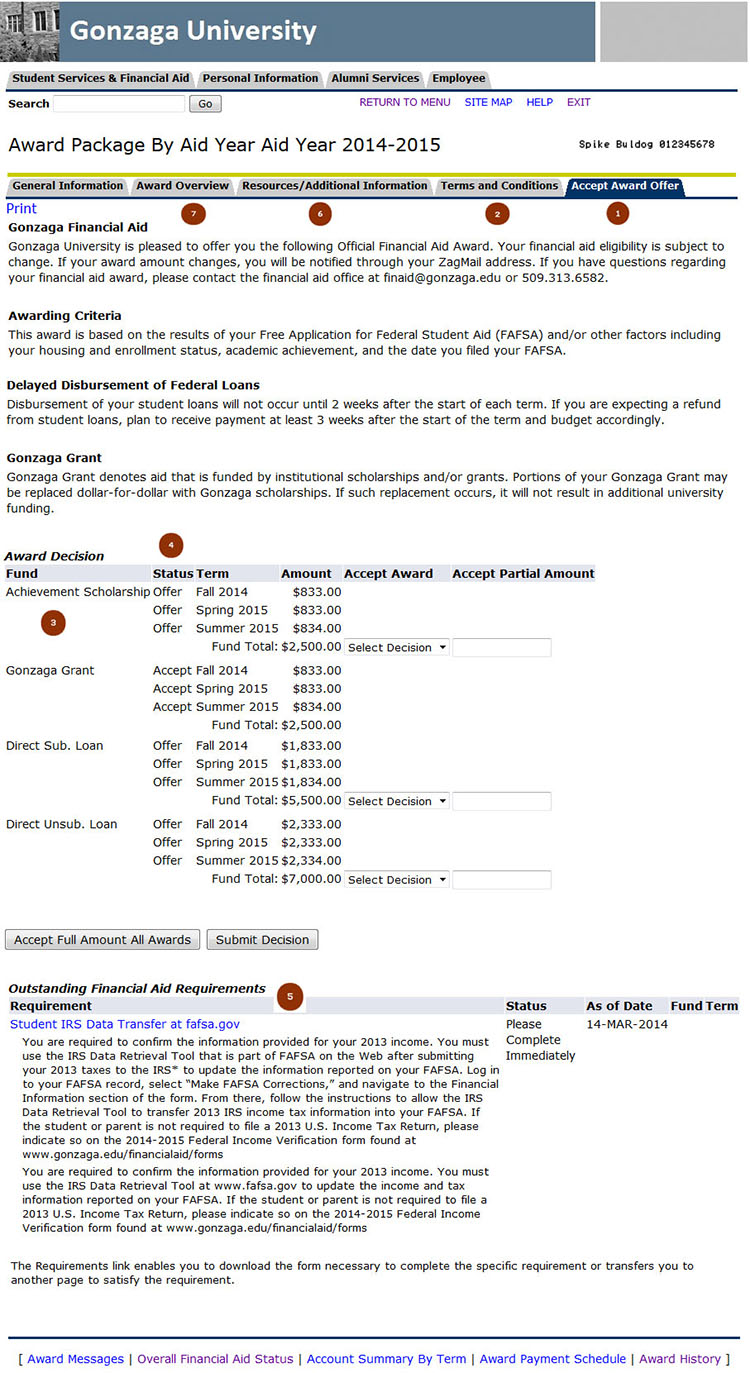
Step 4: Click on "Award by Aid Year" option this will open the Award Overview. The page will open with five tabs: General Information, Award Overview, Resources/Additional Information, Terms and Conditions, and Accept Award Offer
Step 5: click on the "Award Overview" tab to view your award.
Step 6: Review each award offered and Accept or Decline the award(s) by selecting your decision in the "Accept Award" tab. Please be sure to scroll to the bottom of the award page and click on the "Submit Decision" button.
Step 7: After you review your award, complete the financial aid checklist.
While the award may look slightly different, below is an example of where to find the following information within ZagWeb:
Copyright © Ellucian 2008-2012. This document is proprietary and confidential information of one or more of the Ellucian companies and is not to be copied, reproduced, lent, displayed used or distributed except under license from Ellucian. Third party copy centers are advised that clients of Ellucian that have licensed the underlying technology associated with this documentation have a valid license to copy and use this documentation in accordance with that underlying license.